 Field & Home
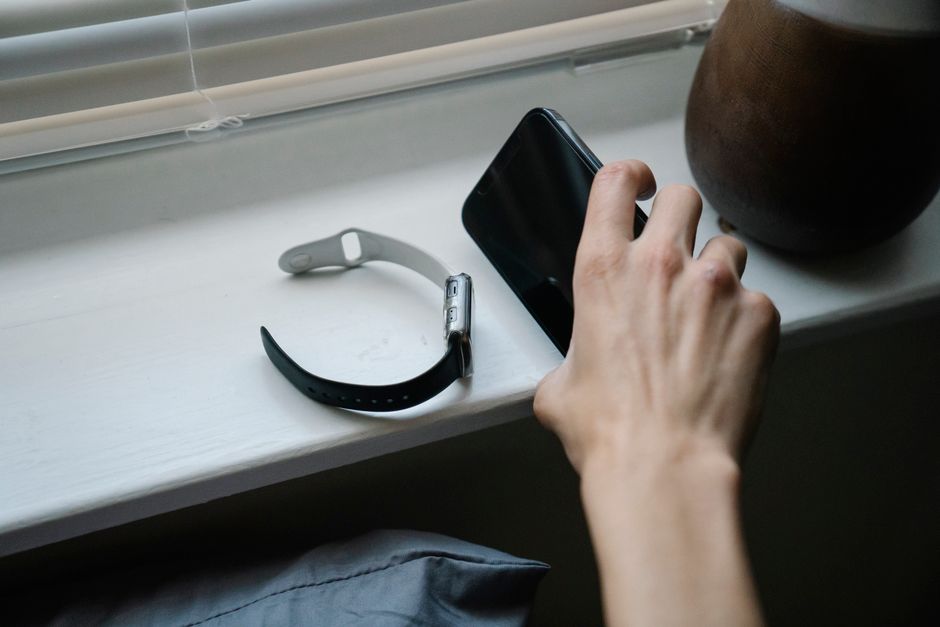
The short answer: Create a 10-minute phone-free morning buffer, schedule Do Not Disturb for a fixed window, and set two timed checks per morning so notifications arrive in batches rather than constantly.
Set a Morning Notification Routine
Start by identifying which notifications actually need instant attention. Spend 15 to 20 minutes on a single morning listing apps and contacts that send notifications and mark each as essential, useful, or unnecessary. Use a quick three-column paper list or a single note: column one for 3 priority contacts, column two for 2 calendar feeds, column three for everything else to mute. This inventory becomes your daily toggle map when you update Settings.
Follow a short three-step setup to translate the inventory into phone settings. Step 1: Open Settings and review Notifications for each app; set nonessential apps to “Off” for Allow Notifications. Step 2: In Focus or Do Not Disturb, add exact allowed people and apps—limit to 2 to 3 people and 1 calendar source. Step 3: Schedule the Focus to run on weekdays or every day at fixed times so it activates automatically without thinking.
Set a fixed Do Not Disturb schedule that matches your morning flow. For many households a useful window is 6:30 to 7:30 a.m.; I recommend ending DND at your wake time plus 10 minutes, for example end at 7:10 a.m. On iPhone use Focus > Add Schedule and pick People and Apps to allow; on Android use Settings > Notifications > Do Not Disturb > Exceptions and add Contacts and apps. Using exact times and named exceptions makes the phone predictable and reduces surprise pings on 5 to 7 mornings each week.
Build a 10-minute phone-free buffer immediately after waking and place the phone 3 to 6 feet away or in another room. Use a small alarm clock or a smart speaker as a backup so you do not rely on the phone alarm. A simple 10-minute routine could be: 2 minutes of hydration (250 to 500 ml of water), 5 minutes of light movement (3 to 5 stretches or a 3-minute walk around the house), and 3 minutes to review a written to-do list or calendar for the day. Repeat this sequence each morning for at least 14 days to test whether mornings feel calmer.
Turn off lock-screen previews and badge clutter to reduce reactive checking. On iPhone go to Settings > Notifications > Show Previews > When Unlocked; on Android use Notifications > Lock Screen > Hide Sensitive Content. Removing message previews and badge counts for nonessential apps reduces the emotional tug and cuts the number of unlocks by roughly half in the first hour.
Why notifications feel urgent
Inventory, schedule, and buffer numbers for calm starts.
Allow 2 to 3 people only
Focus allows 2 to 3 people plus 1 calendar; everything else stays off on 5 to 7 mornings.
Hold 14 days
Run the 2-5-3 sequence daily for 14 days: hydrate, move, review paper before touching feeds.
Three named checks replace endless peeking: calendar, MITs, and one message sweep.
Ten minutes phone-free with water and movement resets the reactive reflex.
Fifteen to 20 minutes listing every notifier once builds the toggle map for weeks.
Control Notifications Throughout the Day
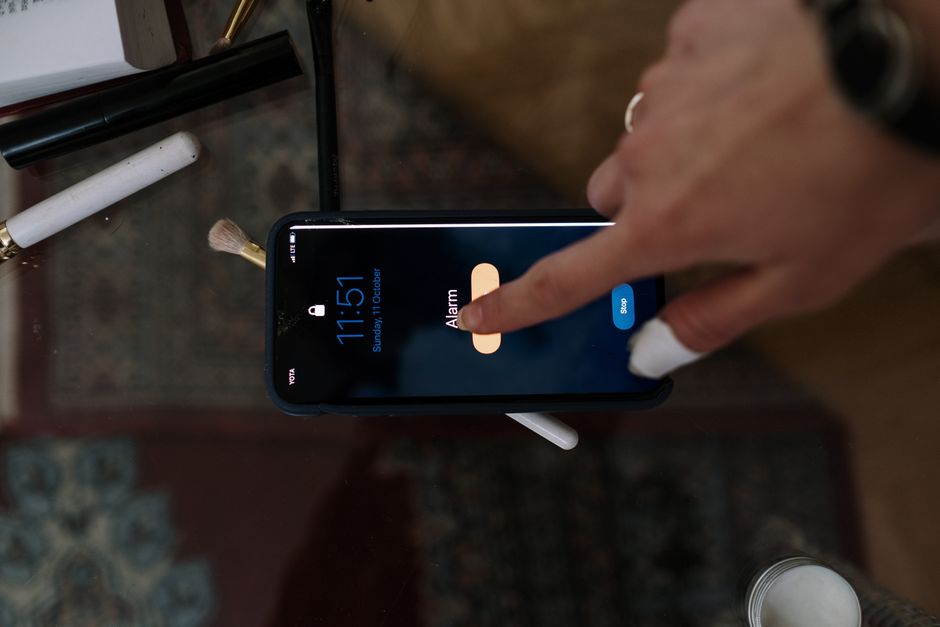
Batch notifications by scheduling two short checks in the morning rather than continuous monitoring. A common pattern is a quick 5-minute check at 7:30 a.m. and a follow-up 10-minute review at 8:15 a.m.; during those checks clear actionable items and archive low-value alerts. Use a timer on a separate device or a kitchen timer: set 5 minutes for the first pass and 10 minutes for a deeper pass to avoid creeping into open-ended scrolling.
Use app-level controls to silence noisy apps and reduce channels to one essential feed. Open each social or news app, go to its Settings > Notifications and disable push for everything except the single channel you need, for example direct messages only. On Android use Notification channels and set a channel to “Silent” or “Off”; on iPhone toggle Allow Notifications off for extras. If an app has 4 channels, keep 1 and silence 3, which cuts noise by 75 percent for that app.
Create separate Focus modes for work and personal life with precise activation windows. For example, set a Work Focus that allows Mail and Calendar from 9:00 a.m. to 5:00 p.m., and a Personal Focus that allows only family calls from 6:00 p.m. to 10:30 p.m. Use automation by time or location so the phone changes mode automatically; if you test for 7 days you can adjust allowed people by a count of 0 to 3 based on missed calls or false positives. These timed profiles keep interruptions aligned with real priorities.
Reduce badges and vibrations to lower the pull of alerts: hide badge counts for social apps and switch vibration off for nonessential notifications in Sound & Haptics. Badges create a perceived backlog—removing them makes the app less urgent. Track progress with Screen Time or Digital Wellbeing: aim to reduce first-hour phone use from a baseline by 10 to 20 minutes within two weeks.
Adopt a 1:5 batching rule to prioritize responses: for every 1 urgent reply, batch 5 nonurgent items into your next scheduled check. For example, if you reply to one urgent message at 7:35 a.m., queue the other five items for the 8:15 a.m. review. Maintain a mid-day dedicated review at a set time, such as 12:30 p.m., to process the next batch and prevent backlogs from growing past 20 to 30 items.
Frequently Asked Questions
Further reading: 9 Phone Photography Tricks for Better Sunsets · What Size Fireproof Home Safe Do Your Documents Actually Need?
Sources: This Old House



One response